Website Terms Glossary for Beginners (Plain English Guide)
If you’ve ever felt like website stuff is “for other people,” or that the "tech-speak" is over your head, you're in good company. A lot of smart business owners get stuck, not because they can’t learn it, but because the language gets in the way.
This post is the final installment in the Confident Client Series, a 12-video (and now blog) journey built to help you make confident, informed choices about your website. I wanted to end the series by giving you something you can keep coming back to, and that's why I created the Website Terms Glossary for Beginners.
Because that’s what this series has been about: helping you feel steady, capable, and clear, whether you’re hiring help, doing it yourself, or mixing both.
What You'll Learn in This Article
What the Confident Client Series covered
Across the series, the focus has been to help you:
Make informed choices (without second-guessing everything).
Understand what matters when you’re hiring a designer or working with support.
Feel more comfortable managing your own site day-to-day.
Build confidence, even if tech isn’t your thing.
If you’re at the stage where you’re talking to designers and want to feel more prepared on those calls, you might also like this article about key questions for hiring a web designer.
Your Free Bookmarkable Website Terms Glossary Gift
For this final post, I wanted to create something you could bookmark and use anytime: a plain-English glossary of common website and tech terms.
Because one of the biggest barriers to confidence is the language.
All those technical terms, acronyms, and jargon can get thrown around so casually that it’s easy to feel overwhelmed. It can make even the smartest person feel like they’re missing something.
And now with AI, things are changing so fast it's hard for even the pros to keep up!
This glossary is here so you don’t have to pretend you know what something means, or pause a tutorial five times, or feel intimidated on a call.
Why this glossary matters
Having a quick reference for website terminology helps in real-life situations like:
Talking with a web designer and wanting to follow the conversation without feeling lost.
Managing your own website and running into a setting you’ve never seen before.
Reading a help article or watching a tutorial where a word is used like you “should” already know it.
Messaging support and trying to make sense of what they’re asking you to do.
The goal is simple: clear definitions, written as non-techie as possible, so you can get the gist fast and move on with your day.
What’s inside the Website Terms Glossary
This glossary includes 30+ terms across 8 categories, plus a request form for new terms and a brief resources section.
The 8 categories
Domain and hosting terms
Design terms
Content terms
SEO and optimization (including AI-related terms, which change fast and will likely be updated often)
Technical terms
User experience (UX) terms
Analytics terms
Maintenance terms
Quick Tour of the Glossary (How It’s Set Up)
I'll walk you through below, but be sure to watch the companion video on YouTube for the full tour!
The glossary is built in Notion, which makes it easy to browse, search, and return to later.
Here’s how it’s organized so it stays useful instead of overwhelming.
How it’s built and how you’ll use it
Table of contents on the right: You can jump to any category quickly.
Toggle sections for each category: Each category is inside a toggle box, so you can expand only what you need and keep the page feeling calm and manageable.
Last updated date: On the left side, you’ll see when it was last updated. This is helpful if you bookmark it and come back later.
Update notifications: Since you enter your email to get access, you’ll also be notified if there are major updates to the glossary.
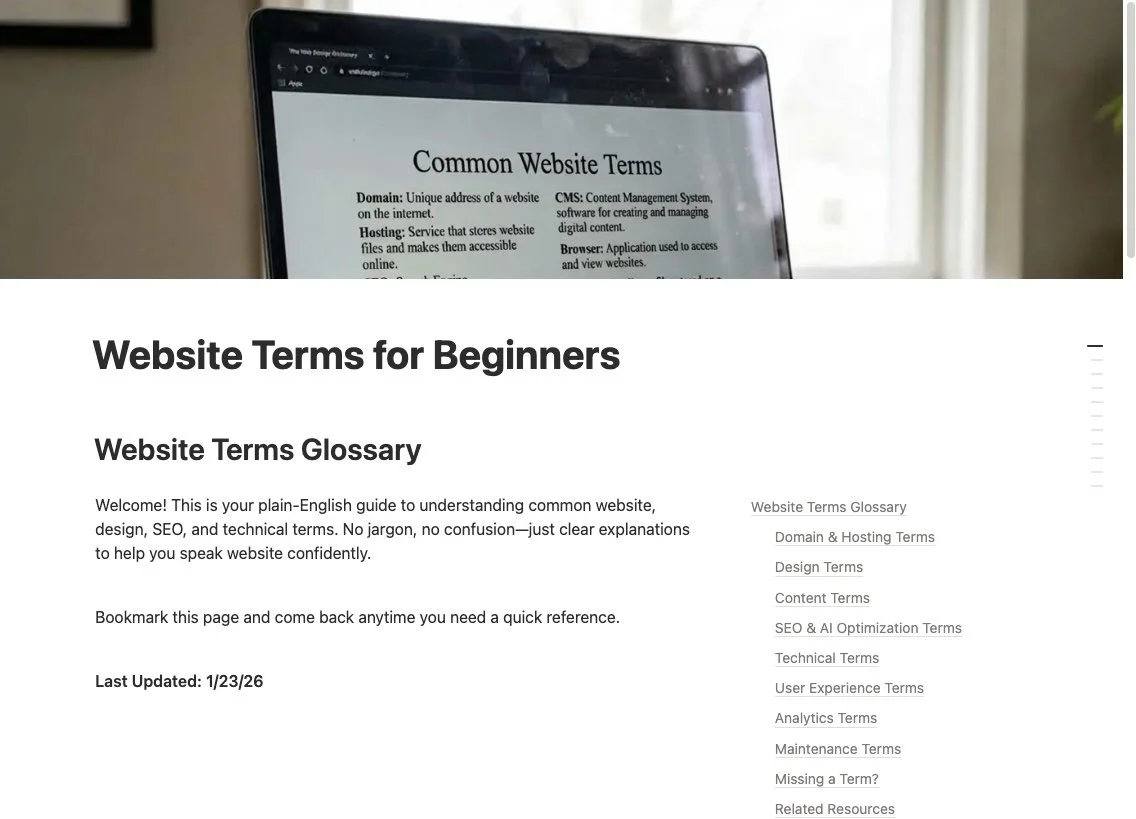
Screenshot of the welcome page of the glossary in Notion.
How to search for a term fast (without hunting)
Notion makes it easy to find what you need, even if you’re in a hurry.
Open the glossary.
Use Ctrl+F (PC) or Command+F (Mac).
Type the term you’re looking for (for example, “DNS”).
When you search, Notion automatically finds the term and expands the correct category, which is a small detail that feels like a big relief.
Example Terms (Plain English, Real-World Helpful)
The point of the glossary isn’t to sound fancy. It’s to help you understand what a term is for, why it matters, and when it might come up.
Sample from domain and hosting: DNS
One example you’ll see in the domain and hosting category is DNS, which stands for Domain Name System.
In plain English, DNS is the system that helps the internet find your website when someone types in your domain name. It’s like a contact list that matches a name (your domain) to the right destination (where your website lives).
You don’t need to memorize the technical version to use it. You just need to recognize the term when it comes up, especially if you’re connecting a domain, switching platforms, or working through a hosting setup.
Samples from other categories (the kinds of terms you’ll see)
The glossary includes terms across all the categories mentioned above, including:
Technical terms: API, embed codes, cache, plugin, extension
SEO and optimization terms: (including AI-related terminology that’s changing quickly)
User experience (UX) terms: language related to how someone experiences and uses your site
Analytics terms: wording you’ll see when you’re looking at traffic and performance
Maintenance terms: basics that come up when you’re keeping your site working well over time
If you’re also trying to make sense of SEO terms as they come up (especially in Squarespace), this walkthrough can be a helpful companion: Squarespace SEO settings walkthrough.
When and How to Use This Glossary
This is the kind of tool that’s easy to ignore until you really need it, then it becomes your best friend.
Here are a few moments when it comes in handy.
Perfect moments to reference it
Before a consultation call with a web designer, when you want to brush up on terms so you feel prepared.
While managing your own site, when you bump into something unfamiliar in your settings.
When you have a support ticket open (Squarespace support or any other platform), and you want to understand what’s being asked or suggested.
While watching tutorials, so you can quickly check a term and keep going.
When setting website goals or reviewing data, especially if you’re looking at analytics and trying to make sense of what you’re seeing.
This is also why the glossary is broken into categories. You can go straight to the type of terms you’re dealing with in that moment, instead of reading the whole thing top to bottom.
How to access the Website Terms Glossary for Beginners
To get access, enter your email, and the glossary link will be sent to you right away.
Once you have it:
Bookmark it so it’s easy to return to.
Check the “last updated” date when you revisit it.
Keep an eye out for email updates when new terms are added.
Submit a Missing Term and Explore More Resources
No glossary is complete forever. Website tech changes, platforms change, and new terms pop up constantly(hello AI!).
That’s why there’s a built-in way to request additions.
Request a term to be added
At the bottom of the glossary, there’s a “missing a term?” section.
If you search and don’t find what you need, you can submit a request using a simple three-field form. Add the term, submit it, and I’ll be notified so I can review it and add it if appropriate.
Related resources (if you want to keep learning)
The glossary also includes a small related resources area, including a way to rewatch the video, find the full Confident Client Series playlist, and a link to visit my site if you want to explore working together.
And if legal policy terms come up for you while you’re building or polishing your site, this guide pairs well with the kind of language you’ll see in website settings: Add Terms & Conditions to your Squarespace site.
Wrapping Up the Confident Client Series
That’s it, we’ve reached the end of the Confident Client Series.
Over these 12 videos and articles, the goal has been to give you the knowledge, clarity, and confidence to make informed decisions about your website, whether you DIY your site, hire a professional, or land somewhere in the middle.
If this series helped you, I’d love for you to leave a comment and tell me. And if you know another business owner who’s been stuck in website confusion lately, please share the series with them.
Thank you for letting me be your confidence catalyst through this whole journey, I’m so glad you’re here, and I hope you feel more confident moving forward.
You may also find these articles helpful: